Why Is My Ring Doorbell Showing Offline?
Few things are more frustrating than opening your Ring app and seeing that dreaded "Offline" status next to your doorbell. Your home security is down, you're missing motion alerts, and you have no idea who is at your front door.
The good news? In the vast majority of cases, a Ring Doorbell going offline is not a hardware failure. It is almost always a WiFi, power, or settings issue that you can fix yourself in minutes — without calling a technician or buying a new device.
In this complete 2026 guide, we walk you through every proven fix for Ring Doorbell offline issues, from the simplest quick resets all the way to advanced troubleshooting steps used by our expert support team.
Our team has resolved over 18,000 Ring Doorbell offline issues remotely. The fixes in this guide are based on real solutions that work for US and Canada users across all Ring Doorbell models.
What Does "Ring Doorbell Offline" Actually Mean?
When your Ring Doorbell shows as offline, it means the device has lost its connection to Ring's servers. This happens through your home WiFi network. If the doorbell cannot reach your router — or your router cannot reach the internet — Ring shows the device as offline in the app.
There are four main reasons this happens:
- WiFi signal is too weak — the doorbell is too far from your router
- Router or internet outage — your internet connection has dropped
- Power issue — battery is dead or wired power supply is interrupted
- Ring server issue — rare, but Ring's own servers occasionally go down
- Device firmware glitch — the doorbell needs a reboot or reset
Now let's fix it. Work through these steps in order — most users solve the problem within the first three steps.
Step 1 — Check Your Internet Connection First
Before touching your Ring Doorbell at all, check if your home internet is actually working. Pick up your phone and visit any website. If pages are not loading, the problem is your internet connection — not your Ring Doorbell.
If your internet is down, contact your internet service provider (ISP). Once your internet comes back, your Ring Doorbell will usually reconnect automatically within a few minutes.
If your internet is working fine, move to Step 2.
Step 2 — Restart Your WiFi Router
This solves Ring Doorbell offline issues more often than any other single fix. Routers accumulate connection errors over time and a simple restart clears them instantly.
Here is how to restart your router correctly:
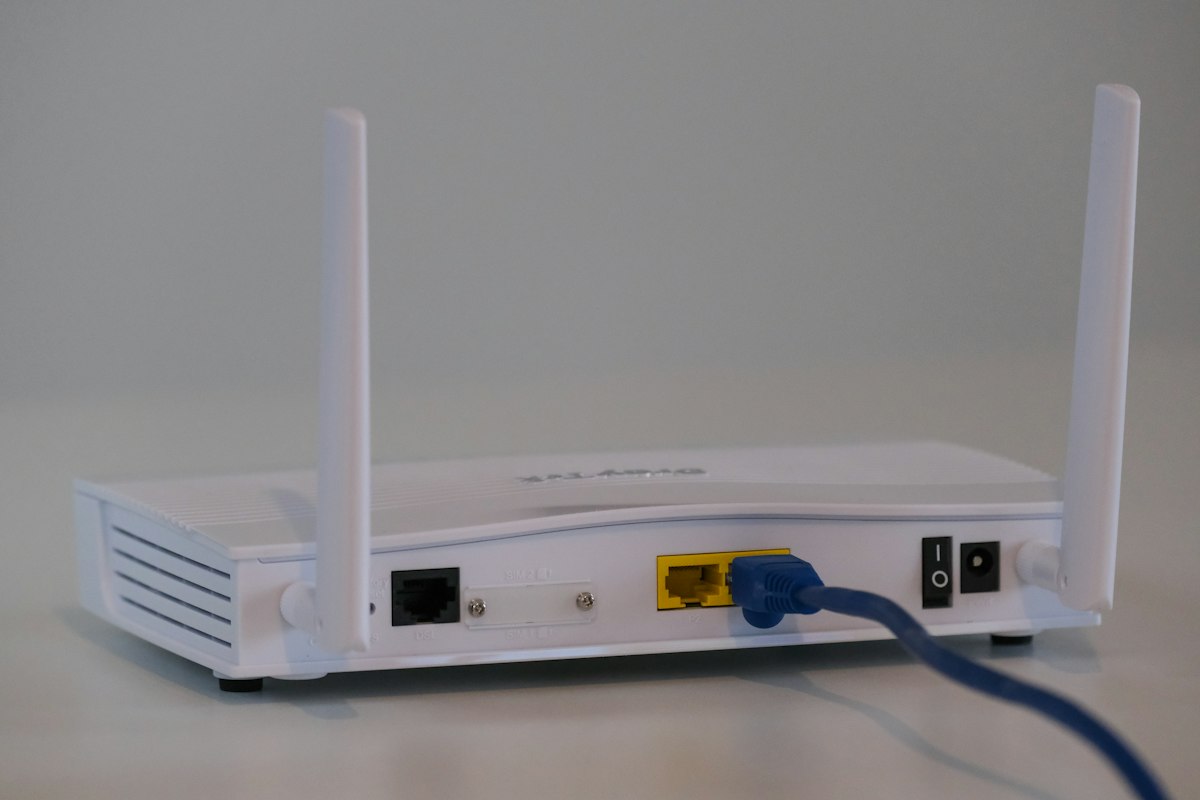
- Unplug your router's power cable from the wall outlet
- Wait a full 30 seconds — do not skip this wait time
- Plug the power cable back in
- Wait 2 full minutes for the router to fully restart and establish connections
- Open your Ring app and check if the doorbell is back online
If your Ring Doorbell comes back online after this step — great, you are done! If it is still showing offline, continue to Step 3.
Step 3 — Check Ring Doorbell Signal Strength (RSSI)
RSSI stands for Received Signal Strength Indicator. It tells you how strong your Ring Doorbell's WiFi signal is. A weak signal is one of the top causes of Ring Doorbell going offline repeatedly.
Here is how to check it:
- Open the Ring app on your phone
- Tap the three lines (menu) in the top left
- Tap Devices and select your doorbell
- Tap Device Health
- Look for the Signal Strength reading
Here is what the RSSI numbers mean:
| RSSI Value | Signal Quality | What To Do |
|---|---|---|
| -40 to -60 | Excellent | Signal is not the issue |
| -60 to -70 | Good | Acceptable, unlikely to cause issues |
| -70 to -80 | Fair | May cause occasional drops |
| -80 or lower | Poor | This is causing your offline issue |
If your RSSI is -80 or lower, your Ring Doorbell is too far from your router or there are too many obstacles (walls, floors, appliances) blocking the signal. The solution is either to move your router closer to the front door or install a Ring Chime Pro or a WiFi range extender to boost the signal.
Step 4 — Reboot Your Ring Doorbell
Just like restarting your router, rebooting the Ring Doorbell itself can clear firmware glitches that are causing the offline status.
For battery-powered Ring Doorbells:
- Locate the orange or black button on the back of your doorbell
- Press and hold it for 10 seconds
- Release the button — the light on the front will flash
- Wait 60 seconds for the doorbell to reboot
- Check the Ring app to see if it is back online
For wired Ring Doorbells (Pro, Pro 2, Wired):
- Go to your home's circuit breaker or fuse box
- Switch off the breaker that powers your doorbell
- Wait 30 seconds
- Switch the breaker back on
- Wait 60 seconds and check the Ring app
Step 5 — Check Your Ring Doorbell Battery
If you have a battery-powered Ring Doorbell model, a dead or critically low battery is a very common cause of the offline status. The device simply does not have enough power to maintain its WiFi connection.
Here is how to check:
- Open the Ring app
- Go to Devices → select your doorbell → Device Health
- Check the Battery Level reading
If your battery is below 20%, charge it immediately. Remove the battery from the doorbell, connect it to the charging cable that came with your Ring, and charge it fully (typically 5 to 10 hours for a full charge). When the battery is full, reinsert it and your doorbell should come back online within a few minutes.
Important tip for cold weather users: If you are in a northern US state or Canada and temperatures are dropping below freezing, Ring Doorbell batteries drain significantly faster. In winter months, you may need to charge your battery every 2 to 4 weeks instead of the usual 6 to 12 months.
Step 6 — Reconnect Your Ring Doorbell to WiFi
If your router or internet settings have changed — for example you got a new router, changed your WiFi password, or switched to a new internet provider — your Ring Doorbell will go offline because it is still trying to connect to the old network settings.
Here is how to reconnect it:
- Open the Ring app
- Tap the menu (three lines) → Devices
- Select your Ring Doorbell
- Tap the gear icon (Device Settings)
- Tap Device Health
- Tap Reconnect to WiFi or Change WiFi Network
- Follow the on-screen instructions to connect to your current WiFi network
- Enter your current WiFi password when prompted
Once connected, your doorbell should come back online within 60 seconds.
Step 7 — Check If Ring Servers Are Down
On rare occasions, Ring's own servers experience outages. This is completely outside your control and affects Ring Doorbell users across the entire country simultaneously.
To check if Ring is having a server outage:
- Visit status.ring.com in your browser
- Check Ring's official Twitter/X account for outage announcements
- Search "Ring down" on Twitter to see if other users are reporting the same issue
If Ring is experiencing a server outage, there is nothing you can do except wait. These outages are typically resolved within 1 to 3 hours.
Step 8 — Check Your Router's 2.4GHz vs 5GHz Band
Modern routers broadcast two WiFi bands — 2.4GHz and 5GHz. Here is what you need to know about Ring Doorbell compatibility:
- Ring Doorbell (1st Gen), Ring Doorbell 2: 2.4GHz only
- Ring Doorbell 3, 3 Plus, 4: Both 2.4GHz and 5GHz
- Ring Doorbell Pro, Pro 2: Both 2.4GHz and 5GHz
If you have a 1st or 2nd generation Ring Doorbell and your router is set to 5GHz only, the doorbell cannot connect. Log in to your router settings and make sure the 2.4GHz band is enabled with its own visible network name (SSID).
Also important — if your router has a feature called Band Steering that automatically switches devices between bands, try disabling it. Some Ring Doorbells get confused when the router keeps switching them between 2.4GHz and 5GHz.
Step 9 — Perform a Factory Reset (Last Resort)
If none of the above steps have worked, a factory reset will restore your Ring Doorbell to its original settings and clear any deep software issues causing the offline problem.
Warning: A factory reset will delete all your settings including motion zones, privacy settings, and linked users. You will need to set everything up again from scratch.
How to factory reset:
- Press and hold the orange or black setup button on the back of your doorbell
- Hold it for 20 to 30 seconds (longer than a regular reboot)
- Release when the light on the front flashes several times
- Wait 2 minutes for the reset to complete
- Open the Ring app and set up your doorbell again as a new device
Ring Doorbell Still Offline After All Steps?
If you have worked through every step in this guide and your Ring Doorbell is still showing offline, there are two possibilities:
- Hardware failure — the WiFi chip or internal components of the doorbell may be damaged. Check if your device is still under Ring's 1-year limited warranty and contact Ring support for a replacement.
- Complex network issue — some routers have advanced settings like MAC address filtering, firewall rules, or VPN configurations that can block Ring Doorbell from connecting. These require expert diagnosis.
Our team at DoorBell Setup specializes in diagnosing and fixing exactly these kinds of complex Ring Doorbell offline issues remotely. We serve users across the United States and Canada with a 95% first-call resolution rate.
How to Prevent Ring Doorbell From Going Offline in the Future
Once you have fixed the offline issue, here are the best practices to prevent it from happening again:
- Keep your battery charged above 30% — set a monthly reminder to check battery level in the Ring app
- Place your router centrally — the closer your router is to your front door, the stronger the signal
- Use a WiFi extender or Ring Chime Pro — if your front door is far from your router, a range extender dramatically improves connection stability
- Keep Ring app updated — always run the latest version of the Ring app on your phone
- Restart your router monthly — a monthly router restart prevents connection errors from building up
- Check Device Health regularly — open Ring app → Device Health once a month to catch weak signal issues early
Summary — Ring Doorbell Offline Fix Checklist
| Step | Action | Time Required |
|---|---|---|
| 1 | Check internet connection | 1 minute |
| 2 | Restart WiFi router | 3 minutes |
| 3 | Check RSSI signal strength in Ring app | 2 minutes |
| 4 | Reboot the Ring Doorbell | 2 minutes |
| 5 | Check and charge battery | 5 minutes |
| 6 | Reconnect to WiFi in Ring app | 5 minutes |
| 7 | Check Ring server status | 1 minute |
| 8 | Check 2.4GHz vs 5GHz band settings | 5 minutes |
| 9 | Factory reset (last resort) | 10 minutes |
Still need help? Our Ring Doorbell experts are available to diagnose and fix your offline issue remotely — no home visit needed. Contact our support team and we will get your doorbell back online fast.